Learn how to effectively moderate and use bot-assisted resources to perform them.
¶ Issuing Punishments
Developer IDs
User/Server/Message IDs provide a more accurate lookup and moderation of users. It's advisable to enable this function and use them when possible to ensure the best accuracy.
 Where can I find my User/Server/Message ID?
Moderation Commands
Ensure that every moderation with a reason field is used properly.
Do not put immature, vague, or otherwise useless reasons for actions placed.
This reflects poorly on us and causes issues during the appeals process.
.mnote <user> <note>
Creates a 📝Mod Note case in the user's modlog history. This is kept as a reference for future moderations.
This does not send a direct message to the user the note is applying to.
Mostly used to privately log potentially disruptive behavior.

Viewing/Editing/Removing
.mnote list <user>- View notes for the user- This will show the index of each note for editing/removal purposes
.mnote remove <user> <index>- Remove a note from the user.mnote edit <user> <index> <newnote>- Edit a note for a user
In-Game Player Notes
Similar to discord user notes, you can add/edit/view notes of other players.
This should only be used if the player is not linked to a Discord account
When looking at a player's stats via the .playerstats command, you will see the following buttons.
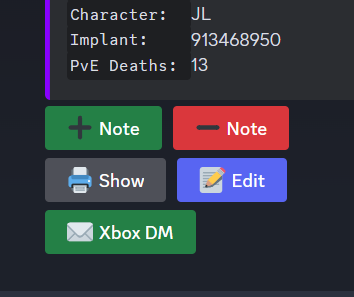
To delete a note, first use the show button to get the number of the note, then you can delete it by clicking the - button and entering that number. It is the same concept when editing a note.
All notes are logged to the #🛡|mod-log channel
.warn <user> <reason>
Warnings are the first step towards remediating behavior if a stronger punishment isn't applicable. Warnings direct message the user with the reason.

The <reason> variable must clearly state what rule was broken and why the user is getting warned.
Discussing mod actions publicly is not allowed. If your warning results in a member complaining instead of fixing their behavior and taking the warning in stride, move immediately to mutes.
.warn <user> <reason> then .timeout <user> <reason> <time>
Mutes are based off timeouts, revoking text and voice channel usage.
Do not use the built-in timeout feature by Discord, always use the command.
.timeouton its own files no modlog case and sends no direct message.
A mute issued that way leaves no record and never tells the user what they did.
Always pair it with a.warnusing the same reason: the warn creates the case and
DMs the user, the timeout applies the mute.
Use identical reason text on both so the case and the DM match.

The most common reasons for mutes are:
- Where a prior warning (including verbal) has not remediated behavior.
- A rule violation that is worse than a warning, but does not warrant a ban.
- Placing an account under review.
Admin Only
.kick <user> <reason>
.softban <user> <reason>
A kick and softban are similar in the sense that both kick the affected user from the server and remove all of their roles. Kick does not purge any messages while softban purges 7 days worth.

The most common reasons for kicks are:
- Inappropriate content within a user's profile.
- A newly joined user breaking rules multiple times.
Admin Only
.ban <user> <reason>
Bans are a permanent suspension of the user's account from the server.
Optionally, you can provide the ban appeal Discord link in the ban: https://discord.gg/KZFbS4aJxA

The most common reasons for bans are:
- Advertisements
- Cheating
- Severe NSFW
- Discord ToS or Guidelines Violations (e.g. racism, terrorism ect..)
- Any situation where any lesser mod actions do not make sense (admin discretion).
- Continued violations of the rules where warns/mutes have not worked.
¶ Modlog Management
On every moderator action, a case is created. These cases can be individually viewed as well as seen at an overview depending on the need.
You have the ability to edit the reason in cases. However, please note that any edits made will not be visible to the user in direct messages. Therefore, it's crucial to ensure the punishment reason is accurate in the first place.
| Action | Command | Commonly Used? |
|---|---|---|
| View info about the in-game user | .playerstats <player> |
 |
| View info about the user | .userinfo <member> |
|
| View a user's modlog overview | .listcases <member> |
|
| View a singular case | .case <member> |
 |
Always use
.listcaseswhen inspecting a user
Using these commands, you can view the case number, reason, moderator, date, and (if applicable) the expiration of a timed punishment.
In order to remove punishments, use the following:
| Punishment | Command | Mod can run? |
|---|---|---|
| Warning | .unwarn <user_id> <warn_id> |
|
| Ban | .unban <user_id> |
|
¶ When a Moderator May Issue a Ban
This section covers the rare situations where a moderator may need to ban a
player without an admin present. Read it before ever using a ban command. In
almost every case the answer is to escalate, not to ban.
¶ The default rule
Moderators do not ban on their own most of the time. Bans are an admin action.
Moderators are not permitted to ban on PvP tickets. Those are handled by
the admin team.
If a ticket cannot be resolved, do not close it in the player's face and do not
reach for a ban. Post the ticket link in staff chat, mark it unresolved, and
wait for an admin.
¶ The two exceptions
There are only two situations where a moderator may ban with no admin around.
¶ 1. Direct hard-R racism
If a player uses the hard-R racial slur and no admin is online, a moderator may
issue the ban. Even then, check with another staff member first if it is at all
possible to do so.
¶ 2. A genuine in-game emergency
A moderator may issue an in-game ban only to stop active, catastrophic damage
that is happening right now and cannot wait. The clearest example is a player
dumping cheated or godmode tames that the foreign-tame scanner did not catch,
with a base actively being destroyed.
If that is happening:
- Get in game and verify it yourself if you can.
- Document it. Take screenshots.
- Report it to the admins.
- Ban only if you are 100% certain.
¶ What is NOT an emergency
- An aimbot accusation at 3am. Aimbot can wait until morning.
- "I think they are about to cheat." We do not ban before anything has happened;
a pre-emptive ban is an admin decision. - A player who is stubborn or argumentative but is not breaking a rule.
Suspicion is not proof. If nothing is actively being destroyed, it waits for an
admin.
¶ The standard you are held to
When you make a ban call like this, you are staking your mod position on it. An
accurate call will be backed by the admin team. A false ban leads to talks.
¶ Best practice: never decide alone
The single best piece of advice for a moderator considering a ban: do not make
the call solo. Pull in every moderator who is online and decide together. A team
decision is one the admin team can stand up and defend. A ban issued by a lone
moderator invites questioning and accusations that a group call does not.
¶ Escalation ladder for difficult tickets
For any hard ticket short of the emergencies above:
- Moderator handles it.
- If the player will not listen, bring in an admin. Post the ticket link in
staff chat and wait. - NoA is a last resort, used only on repeat problem players with a history.
Never close a ticket in a player's face. The goal of support is a positive
resolution. Resolution time matters less than the quality of support.